Do some parts of your video feel unnecessary for TikTok? Or maybe you want to trim or shorten a long-form video into bite-sized clips for repurposing on TikTok?
If so, you're probably wondering how to trim and cut videos for TikTok. You're in the right place!
TikTok comes with a built-in video trimmer that lets you easily cut or shorten videos you upload or record directly in the app. You can also use third-party editing tools—especially AI-powered long-video clippers—to trim content faster and create engaging TikTok-ready clips. In this guide, we'll walk you through several easy ways to trim and cut TikTok videos. Let's dive in.
Content:


Create Video Faster with FlexClip’s Pre-Made Templates →
Start from Scratch Easily with FlexClip’s Online Video Maker →
Can't Miss: How to Do Green Screen on TikTok>
How to Trim TikTok Videos Directly in the App: 3 Options
Try to trim and cut your TikTok video? The good news is that the TikTok app includes built-in editing tools that allow you to trim and cut videos before publishing. You can trim and cut your TikTok videos in a variety of ways in this app, regardless of whether you record a video within the app or upload a pre-recorded video. Try these methods below to get started right now!
Below are three common ways to trim TikTok videos directly in the app. Let's check out.
1.1 How to Trim a Recorded TikTok Video
If you recorded a video using TikTok's built-in camera and you want to trim and cut to shorten it, you can do it with the "Adjust Clips" feature. Simply follow these steps:
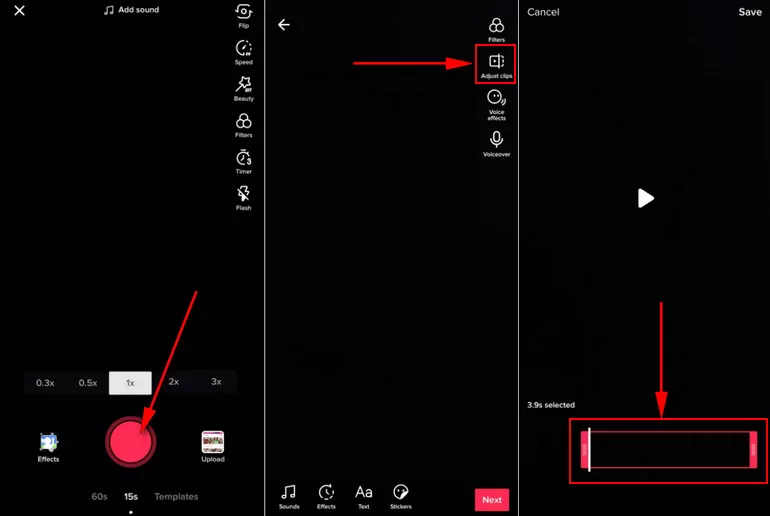
Trim a Recorded TikTok Video
1.2 How to Trim a Uploaded TikTok Video
Already captured a video for sharing on TikTok but need to make it shorter? Trimming an uploaded video and shorten the clip using the in-built trimmer in TikTok is also pretty easy! Follow the simple steps below to trim an uploaded video on TikTok:
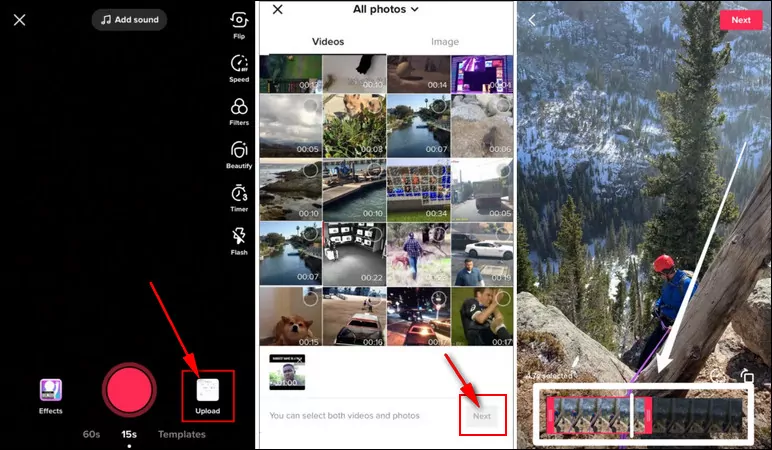
Trim a Uploaded TikTok Video
1.3 How to Trim a Stitched TikTok Video
Already captured a video for sharing on TikTok but need to make it shorter? Trimming an uploaded video and shorten the clip using the in-built trimmer in TikTok is also pretty easy! Follow the simple steps below to trim an uploaded video on TikTok:
Bonus: AI TikTok Clip Maker for Trimming Long Videos for TikTok
While TikTok itself offers great options for in-app video trimming, manually cutting long videos can take time—especially if you're repurposing webinars, podcasts, interviews, livestreams, or YouTube videos. That's where an AI-powered tool like FlexClip Long to Short Video comes in handy.
FlexClip AI Clip Maker helps you automatically turn long videos into short, engaging TikTok-ready clips in just a few clicks. Instead of searching through hours of footage manually, the AI identifies highlight moments and creates shorter clips optimized for social media platforms like TikTok, Instagram Reels, and YouTube Shorts.

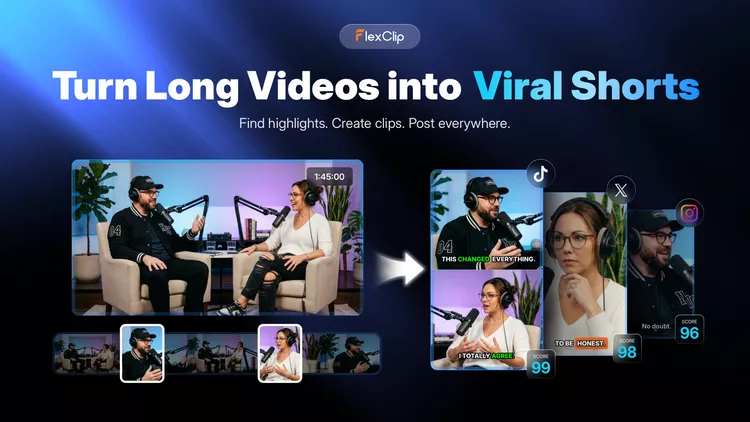
AI TikTok Clip Maker - FlexClip
Beyond clipping, FlexClip also provides powerful video editing features that help you customize your content—helping your videos stand out on TikTok. Let's check some of the best features of FlexClip:
How to Trim Long Video into Clips for TikTok with FlexClip AI
As you can see above, FlexClip AI Clipping tool makes it easy to turn raw livestream footage into optimized, platform-ready short-form videos for TikTok, YouTube Shorts, and Instagram Reels by automating highlight detection, editing, and formatting. Let's check the steps below to learn how to turn long streams into a steady pipeline of short-form content with FlexClip AI Clipper.
Step 1 Open FlexClip's AI Clipper
Click the Trim Long Videos for TikTok button above to access FlexClip's AI Clipping tool, then upload the video you want to trim for TikTok. Here, you can directly convert a YouTube video by pasting its link, upload a downloaded or recorded video from your local file or even import a video from your Google Drive.
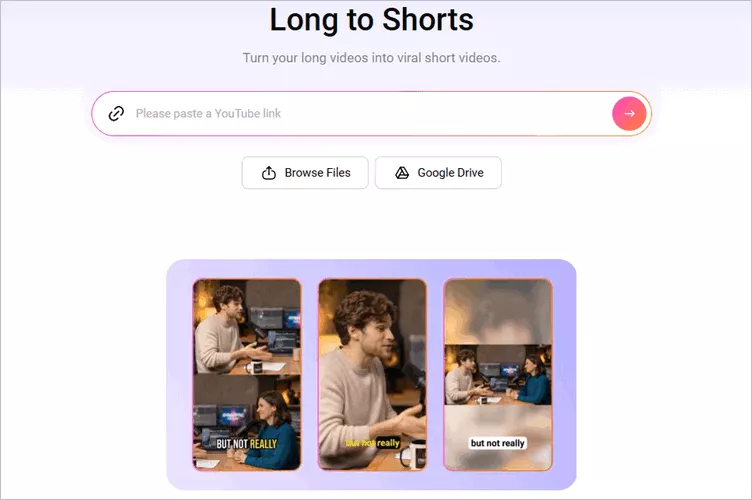
Long Videos into Short Clip for TikTok with FlexClip AI - Access FlexClip's AI Clipper
Step 2 Adjust the Setting for Short Clips
Once your video is loaded, FlexClip will automatically take you to the settings page, where you can customize how the AI trim the video for TikTok. Choose the aspect ratio as 9:16 tofit TikTok format, then adjust additional options such as language, clip type, subtitle style, and more to create the perfect TikTok video.
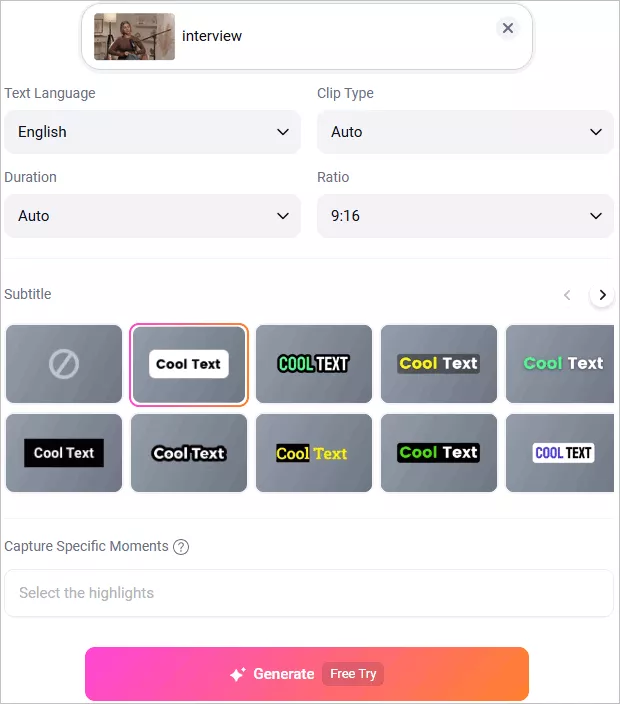
Long Videos into Short Clip for TikTok with FlexClip AI - Adjust Setting
Step 3 Auto-clip Video for TikTok with One Click
After that, click the Generate button to start the conversion. FlexClip's AI will analyze your video, reframe it, highlight key moments, add automatic subtitles, and create multiple short clips that are perfectly sized for TikTok.
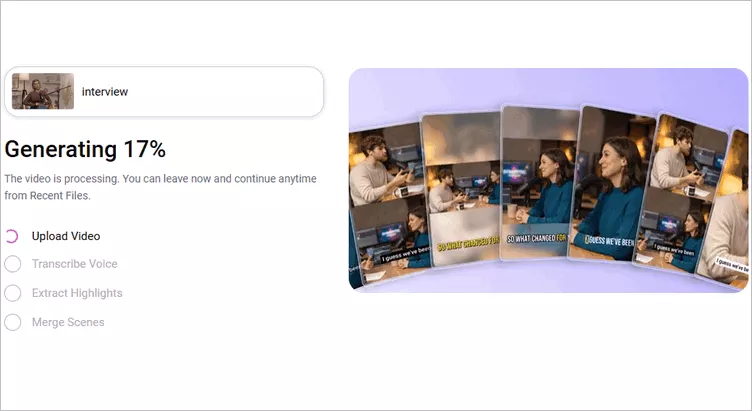
Long Videos into Short Clip for TikTok with FlexClip AI - Generate Viral Clips with One Click
Step 4 Preview and Download the AI-Generated Clips
Once your clips are generated, you can preview all the AI-generated clips. If you need any adjustments for the AI-generated clips, you can click the trim button to access the full video transcript and select any portion from the transcript text to pick the clips that showcase the most impactful moments of your content and generate a new clip for TikTok.
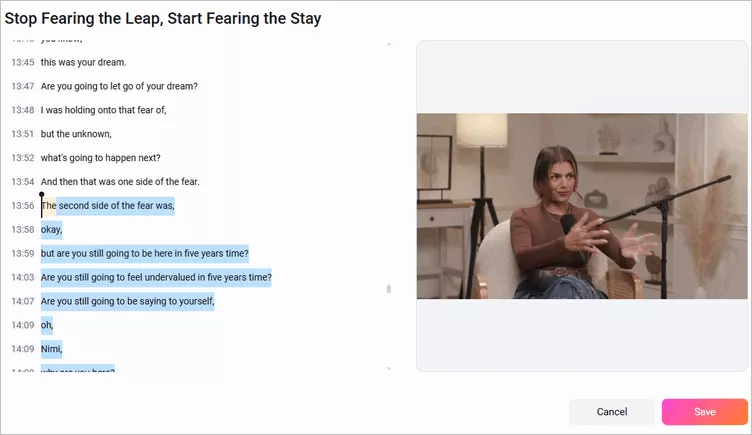
Long Videos into Short Clip for TikTok with FlexClip AI - Select and Trim Clip
Once satisfied, you can choose the clips to download and share it to TikTok. Need more precise edits to prefect your video? Just click the Open in Editor button and take your video clips into the built-in editor and make edits freely.
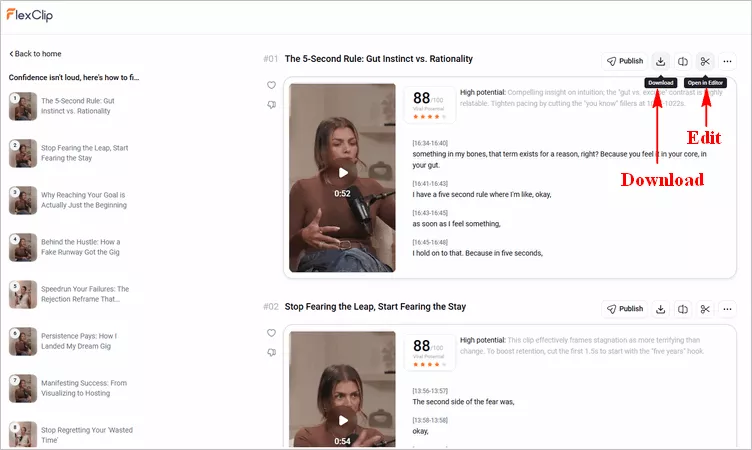
Long Videos into Short Clip for TikTok with FlexClip AI - Download Clip
While you're in the editor , you can use its powerful features to make more edits to perfect your clips with background music, text animation, funny stickers, filters, transitions, overlays, various shapes, etc. Feel free to try them out! Once you have done the editing, you can preview the video and finally click the Export button to save and then directly share your video to TikTok within clicks on your computer.
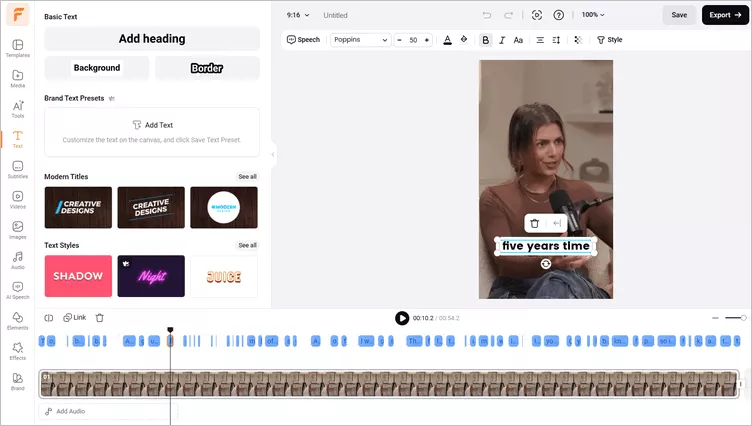
Long Videos into Short Clip for TikTok with FlexClip AI - Edit Video
Pro Tip:Have no ideas on how to edit your video? Just check out FlexClip's professionally designed templates for some inspiration.


Final Words
That's all about how to trim a TikTok video and shorten a clip as you wish. We hope the tools and method above can give you a better experience to trim a Tik Tok video.




FlexClip AI Video Maker
Reach professional-quality videos faster with easy editing tools, templates, and smart AI.
Start Now for Free
Hot & Trending
-

Best Ways to Find Music in YouTube Videos
-
Instagram Story Video Quality Bad After Upload? Fix It!
-
How to Repost Video on TikTok & How to Remove TikTok Repost
-

Improve Video Quality Online: 3 AI Video Quality Enhancers You Can't Miss
-

4K Convert to HD 1080p without Watermark: Best 4k Video Converters
-

Best 8 Free Video Editors - No Download Required
-
Top 13 Birthday Video Makers with Music and Effects Free
-
How to Search Filters on TikTok & Use a Filter You See - TikTok Filter Guide