Google Slides is a popular choice for creating presentations, but turning your slides into videos can take your content to the next level. A video format helps you capture attention, boost engagement, and share your ideas with a wider audience across different platforms.
Since Google Slides doesn't offer a direct video export option, how can you convert your slides into a video? The solution is easier than you think. In this guide, we’ll introduce an all-in-one online tool that lets you effortlessly transform Google Slides into engaging videos for education, marketing, business, and more. Ready to get started? Let’s dive in!
Tables of Content
Free and Professional Presentation Templates for You:


Explore More Presentation Video Templates to Inspire>>
Directly Convert Google Slides to Video on Your Browser>>
Part 1. An All-in-one Tool to Turn Google Slides into Video Online
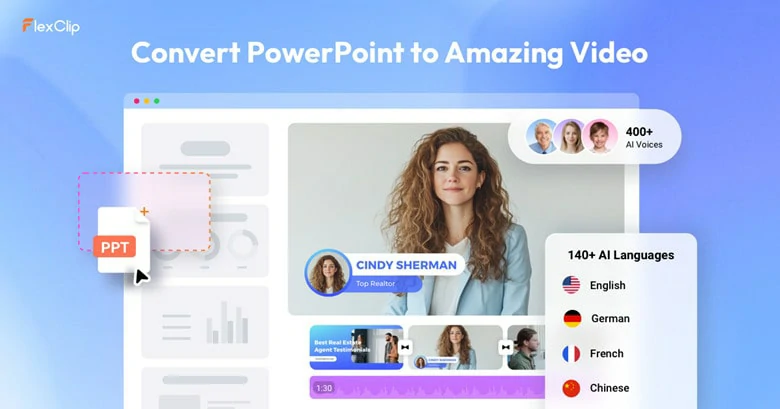
Turning Google Slides into engaging videos is easy with the help of FlexClip. As a versatile presentation video editor, it lets you convert convert each slide into a scene with AI avatars, natural voiceovers, captions using AI or record yourself narrating while moving through the slides to create a presentation video. No matter what method you choose, FlexClip runs right in your browser and delivers a seamless and professional result every time.
An All-in-one Tool to Turn Google Slides into Video Online - FlexClip

Convert Google Slides to Video with AI - FlexClip
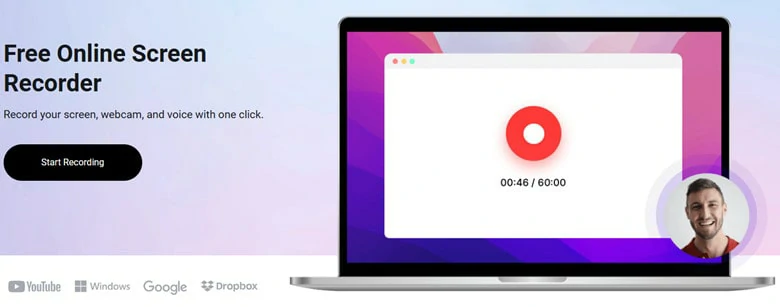
Turn Google Slides to Video Online with FlexClip's Screen Recorder
Turning Google Slides into videos with FlexClip is just the beginning! Its built-in video editor gives you everything you need to refine your recordings and add a personal touch. With an intuitive interface and a range of powerful editing tools, you can easily trim clips, customize transitions, adjust background music, highlight important text, and enhance your videos with animated effects and sound effects.
Bonus features like subtitles generation, aspect ratio control, seamless social media sharing and 2000+ presentation video templates will be the backup to choose FlexClip for Google Slides to video conversion.
Revolutionize Your Video Editing in FlexClip
Now that you have a general understanding of FlexClip, let’s see how it works to help you get a presentation video.
Part 2. How to Turn Google Slides into Videos Using FlexClip
Can’t wait to have a try? Follow our step-by-step guides below to turn Google Slides into charming videos.
1)Convert Google Slides into Video with AI Human Presence in 20 Seconds
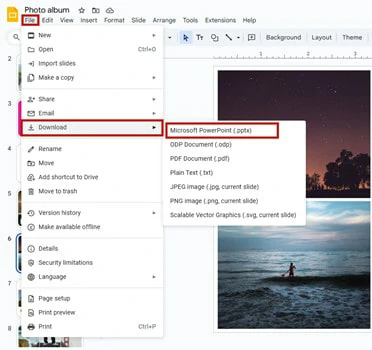
Download Google Slides as a Local PowerPoint Presentation File
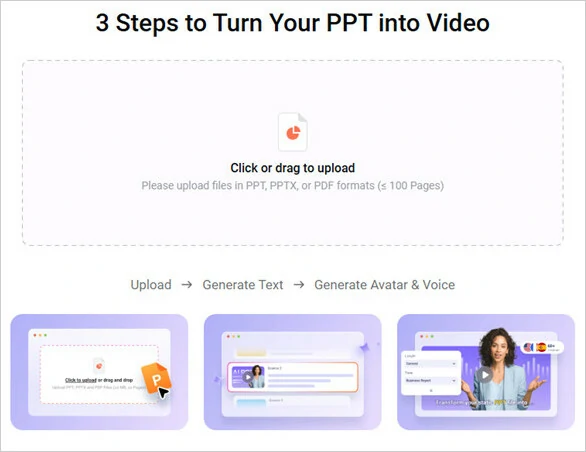
Go to FlexClip's PPT to Video Converter and Upload Your Downloaded File
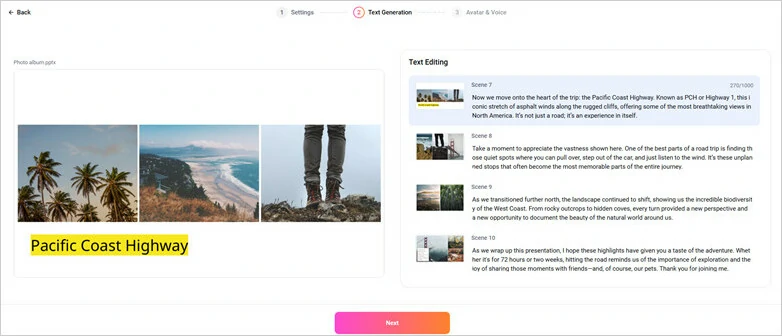
Extract Image of Slides and Generate Accurate Script
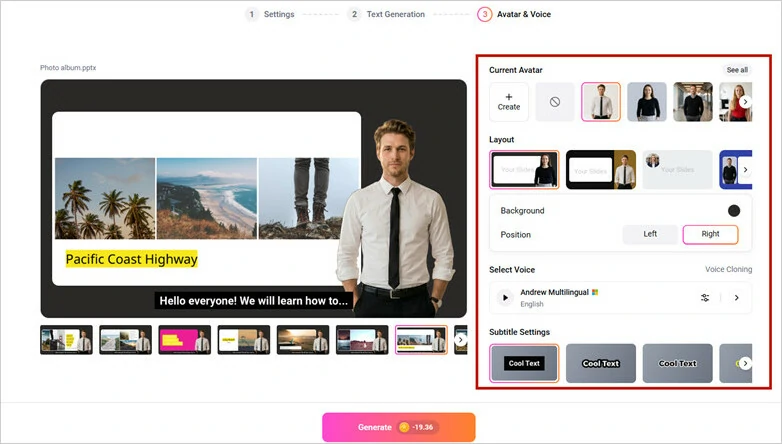
Set Voice and Avatar for the Presentation Video
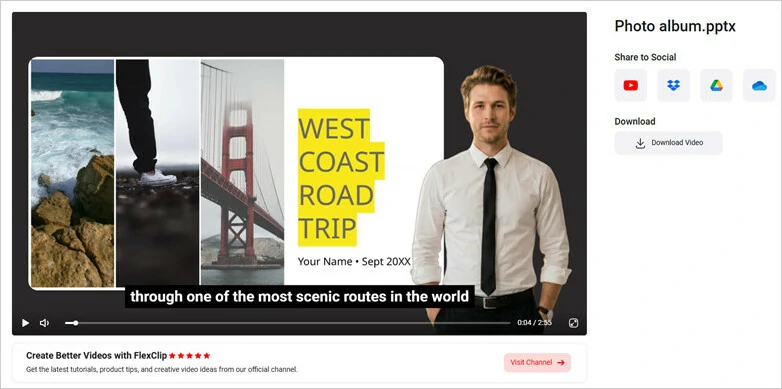
Preview and Download the AI-generated Video from FlexClip
Here is the AI-generated presentation video from a Google Slides file:
FlexClip AI-generated Presentation Video from Google Slides
2)Screen Record Google Slides into a Video
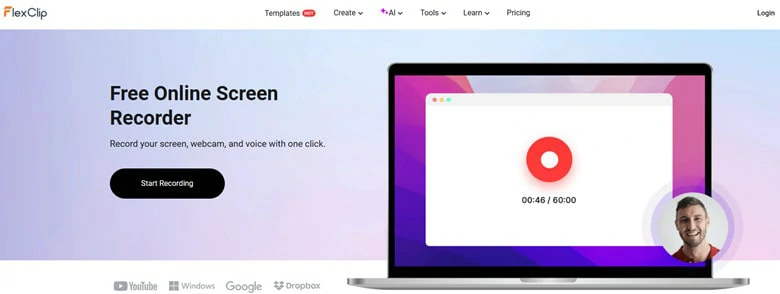
Open Your Presentation in Google Slides and Access FlexClip's Screen Recorder
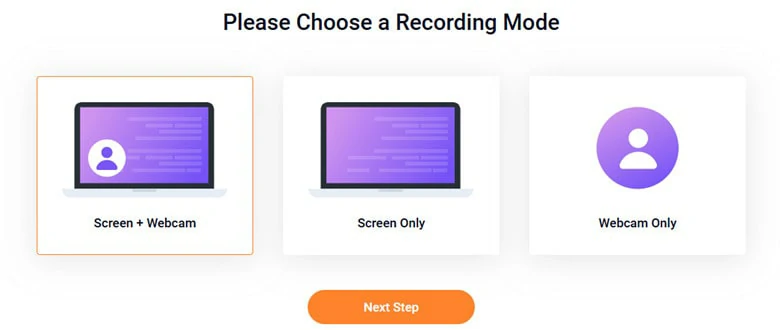
Make Settings for the Recording Process in FlexClip
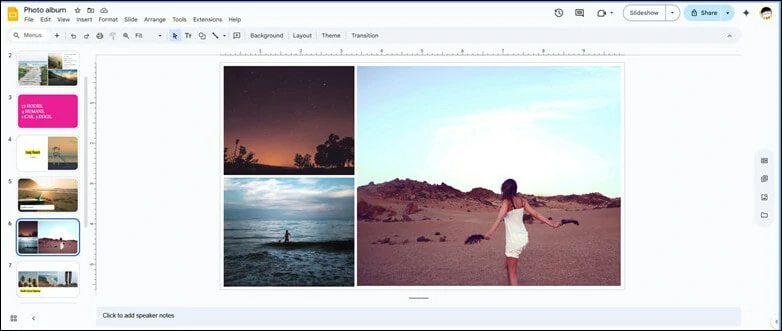
Start Recording and Make Presentation as Usual
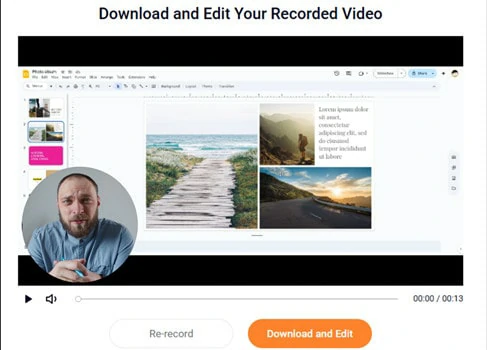
Download the Recording Video or Continue Edits in FlexClip's Editor
Once you complete modifications, download it as an MP4 video in 480p, 720p, 1080p or up to 4K resolutions or seamlessly share to YouTube, TikTok or other social media platforms to get views in no time.
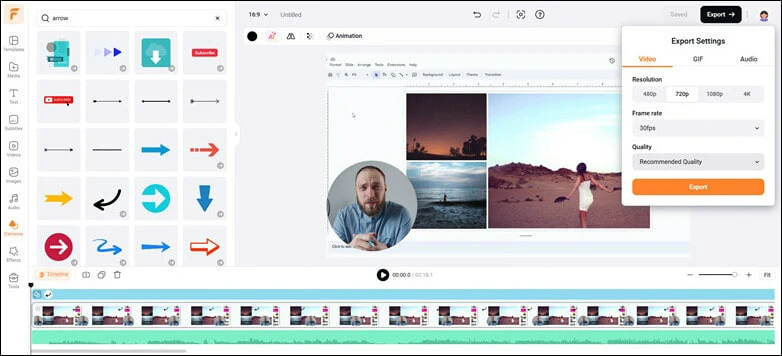
Add Personal Touch in FlexClip's Editor and Download it to Local File
Part 3. Other Workable Methods to Turn Google Slides into a Video
You may wonder is there any workable methods to turn Google Slides into a video. We understand your needs though other solutions might not offer straightforward and efficient workarounds as FlexClip does, and here is a brief overview of these ways.
1) Download Google Slides as a PPT and Export it as a Video
You can download Google Slides as a PowerPoint presentation, then export it as an MP4 file seamlessly.
2) Use Add-on to Export Google Slides as Video
Use extensions like Creator Studio to convert Google Slides into video in an automated workflow. It will add a menu to Google Slides, letting you automatically convert slides into a video with customizable settings like duration, narration, music, and more.
3) Present Slides and Record with Meeting Software
This works perfectly if you teach online course through online meeting software like Google Meet. Then you can present slides in real-time while recording a video for listeners to review.
Frequently Asked Questions
1.How to Insert Vimeo into Google Slides?
Sometimes, you might wish to insert Vimeo videos into Google Slides for clear explanation, you can do this by either embedding Vimeo video link or using Vimeo’s embed code.
2.How to put a YouTube video to Google Slides?
Embedding a YouTube to Google Slides is easier than you think. Just open the slides you want to insert YouTube video, then click on Insert > Video to paste YouTube video’s URL or directly search one to embed.
3.Is there any AI that Creates Presentations?
Yes. AI presentation makers revolutionize slide creation, turning hours of work into minutes. They handle everything from content generation and layout design to visual optimization and multimedia integration, delivering professional results with an efficient, automated workflow.
4. What formats does Google Slides support to put a video?
Google Slides supports videos in MP4, MOV, WebM, AVI formats. If you have unsupported file type, you will need to convert it to compatible format at first before inserting it into your presentation.




FlexClip AI Video Maker
Reach professional-quality videos faster with easy editing tools, templates, and smart AI.
Start Now for Free
Hot & Trending
-
Best Ways to Find Music in YouTube Videos
-
Instagram Story Video Quality Bad After Upload? Fix It!
-
How to Repost Video on TikTok & How to Remove TikTok Repost
-

Improve Video Quality Online: 3 AI Video Quality Enhancers You Can't Miss
-

4K Convert to HD 1080p without Watermark: Best 4k Video Converters
-
Best 8 Free Video Editors - No Download Required
-
Top 13 Birthday Video Makers with Music and Effects Free
-
How to Search Filters on TikTok & Use a Filter You See - TikTok Filter Guide