Still struggling to post multiple photos to an Instagram post? No need to! Update your Instagram, you will find that Instagram has introduced its slideshow feature for some time. It enables users to upload up to 10 multimedia files over one post. This feature provides convenience for those who want to deliver lots of information on one Instagram post.
Here in this post, we will show you easy ways to to create an slideshow for Instagram story/reels/feed on the app itself. An excellent Instagram slideshow makers are following. Check out and let's make amazing Instagram slideshows.
Table of Content


More Instagram Video Post Templates Free to Customize >
Can't Miss: Instagram Story Quality Bad After Uploading? Fix It!
Method 1. Make Slideshows for Instagram on the App Itself
As mentioned earlier, it is possible to make slideshows on Instagram app itself and post to the Stories, Feed and Reels. The process might differ a little bit, but they are all easy to follow.
Part 1. Make Instagram Slideshows for Instagram Story
It is also possible to add music to Instagram Stories, please refer to How to Add Music to Instagram Story for detailed steps.
Part 2. Make Instagram Slideshows for Instagram Feed
Part 3. Make Instagram Slideshows for Instagram Reels
Create Slideshow for Instagram on the App Video Tutorial
Method 2. Make Slideshows for Instagram with Music on Computer
While Instagram's built-in tools are quick and convenient for spontaneous posting, fastidious editors, like us, may find Instagram's editing features are quite limited. You can't design a long continuous canvas and slice it across each slide, use custom fonts, or make advanced edits like motion tracking, curve speed, etc.
FlexClip is an excellent Instagram slideshow maker that helps you get rid all these limitations. Here are the key features that ensure you get the best Instagram slideshows.
Key Features
FlexClip AI Recreate Template
FlexClip AI Photo Editing Suite Overview
Feel like getting started at FlexClip? Click on the Create Instagram Slideshow button and follow the steps below to get started!

Part 1. Manually Create an Instagram Slideshow
By default, you will be taken to the editing panel of 16:9. Usually, the right aspect ratio for Instagram is 9:16. Click the button in the upper left corner to change.
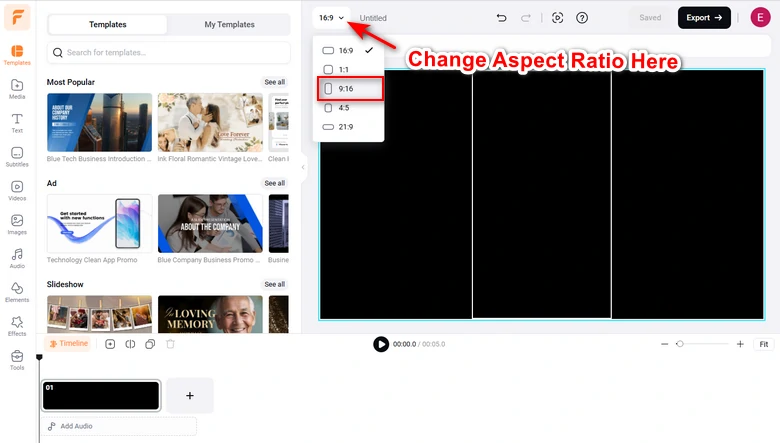
Change Canvas Aspect Ratio to 9:16
Go to the Media section, select photos and music from a local folder, a cloud service, or mobile device, upload them to FlexClip.
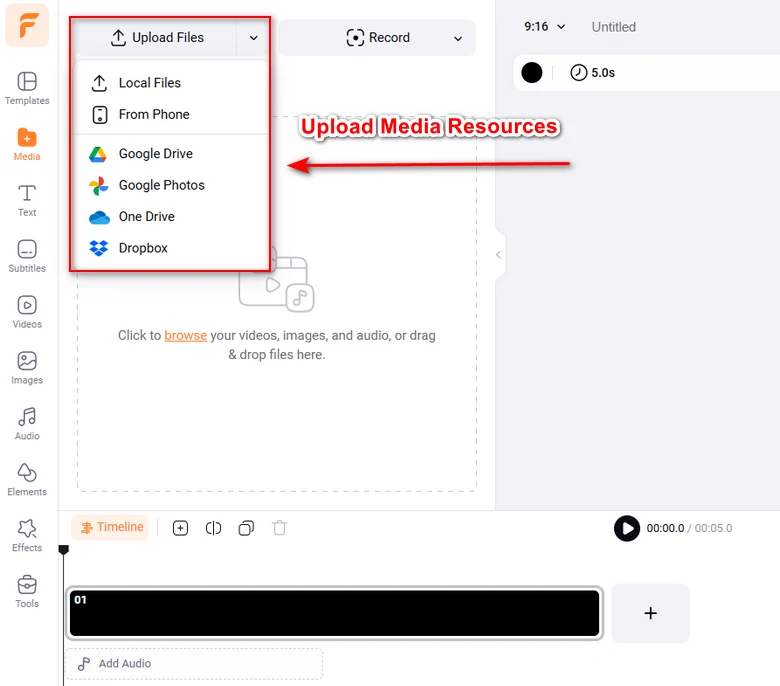
Upload Media Resources to FlexClip
Click on the Add as Scene button on each photo to apply them to the timeline. Drag the slider to change the duration of each photo.
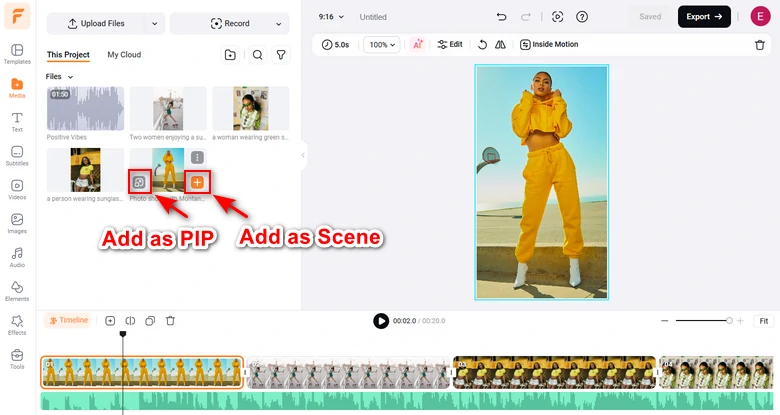
Add Resources to the Timeline
Transitions make each photos go smoothly. Click the little square between each photos, select the transition that matches your slideshow theme. Instead, select any photo, all available editing tools like filters, crop, flip will pop up above the preview window. You are also able to bring in dynamic text, sound effects on the left panel.
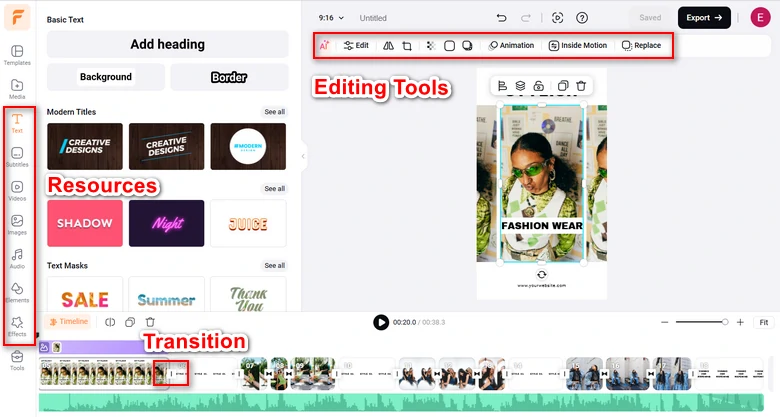
Edit Instagram Slideshow at FlexClip
Part 2. Quickly Generate an Instagram Slideshow Using AI Recreate
Visit FlexClip's Template page, search for slideshow, find the template you love, and hit the AI Recreate button.
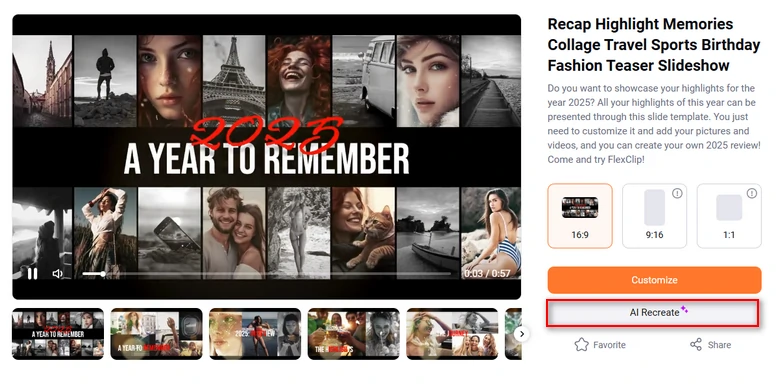
Pick a FlexClip Template
Choose text language, enter the slideshow theme, then drag and drop all your photos to the Media part. Hit Generate. AI will start replacing the resources for you.
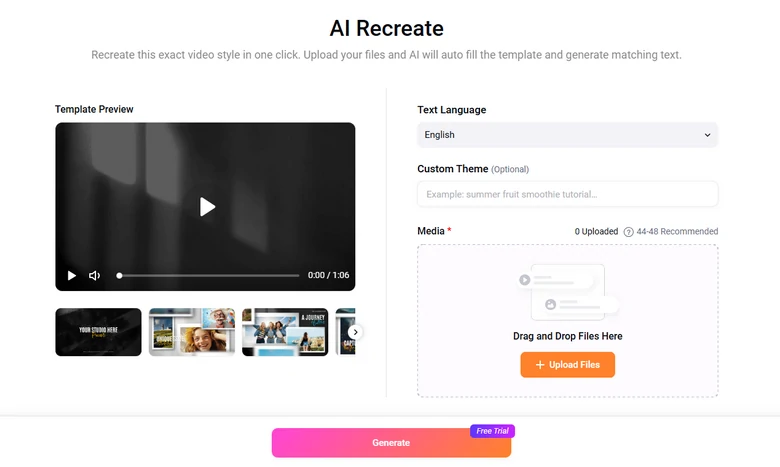
AI Recreate FlexClip Template
The Bottom Line
That’s all for how to create slideshow for Instagram. Are you satisfied with the solutions above? Tell us via Facebook. If you find this post helpful, please do share it with others. By the way, FlexClip is a great tool for slideshow, do remember to give it a try to create more videos for Instagram, TikTok, YouTube to win more likes and comments.




FlexClip AI Video Maker
Reach professional-quality videos faster with easy editing tools, templates, and smart AI.
Start Now for Free
Hot & Trending
-

Best Ways to Find Music in YouTube Videos
-
Instagram Story Video Quality Bad After Upload? Fix It!
-
How to Repost Video on TikTok & How to Remove TikTok Repost
-

Improve Video Quality Online: 3 AI Video Quality Enhancers You Can't Miss
-
4K Convert to HD 1080p without Watermark: Best 4k Video Converters
-
Best 8 Free Video Editors - No Download Required
-
Top 13 Birthday Video Makers with Music and Effects Free
-
How to Search Filters on TikTok & Use a Filter You See - TikTok Filter Guide