Built to boost your workflow for video and audio editing, AI voice generators have become one of the most highly efficient and popular ways for content creators to create quality video content for social media these days.
So, if you don’t have time and gear to record voiceovers yourself or lack an angel-kissed voice to engage viewers in your video or live streaming, no worries! We’ve got you covered!
In this tutorial, we have rounded up a list of the 4 best AI voice generators and will walk you through their pros and cons for creating realistic AI-generated voice. So you can easily make human-like AI voiceovers for your YouTube videos, podcasts, and promo videos of all kinds.
Here is what you will learn:
Also, read the 6 best ways to automatically transcribe video to text.
1. FlexClip
If you mainly need to create realistic AI voices and blend them into your YouTube video, Instagram Reels, TikTok video or Facebook videos, or other promo videos like webinar teasers, meet the team video etc., then FlexClip online AI voice generator can be your best bet.
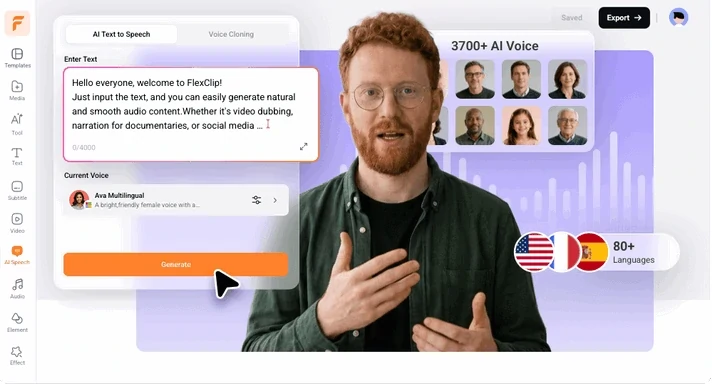
Easily generate realistic AI voices with FlexClip AI voice generator online for video projetcts.

What distinguishes FlexClip from most AI voice generators is that not only is FlexClip a powerful and realistic AI voice generator but also a user-friendly and feature-rich online video maker. So, it basically serves as a powerhouse for generating AI voiceovers, and editing them with videos, images, GIFs, and audio in one place online.
Best Features to Generate AI Voice with FlexClip




How to Create Realistic AI Voiceovers by FlexClip Online:
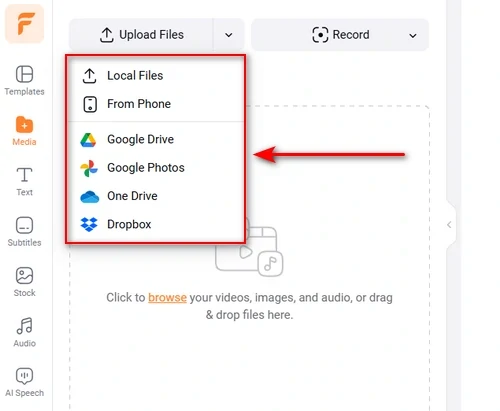
Upload your video assets to FlexClip.
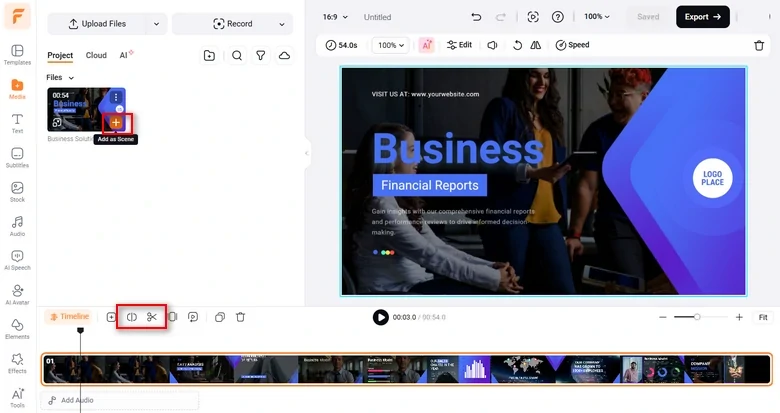
Add clips to the timeline.
Go to the AI Speech > AI Text to Speech part. Type in the text you want to convert to voiceover in the empty box.
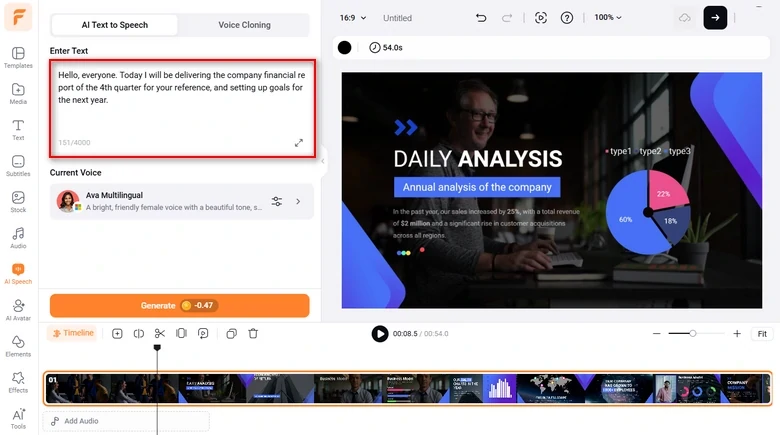
Enter script for the AI voiceover
Next up, select a voice you like. By default, you are in a multilingual model. Click on it, you will have access to 3700+ advanced voice models from Google, Microsoft, ElevenLabs, Minimax, etc.
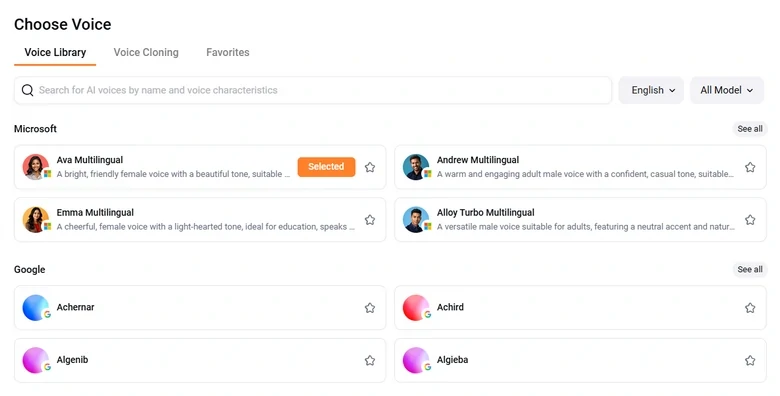
Pick a voice model that meet your needs
Don't have a voice you love? Upload an audio file, AI will automatically create an AI voice model that perfectly mimics the original sound. No complicated setup is needed.
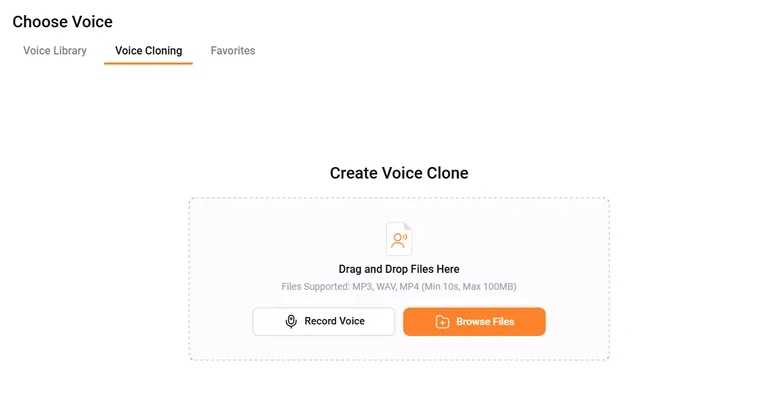
Clone a voice and use it for your video project
Next, you can go back to the Media tab and add the AI-generated voice to the audio track. Meanwhile, another free AI voice audio file will also be automatically saved to your PC for backup or future use. You can trim, split or merge AI voiceovers with ease.
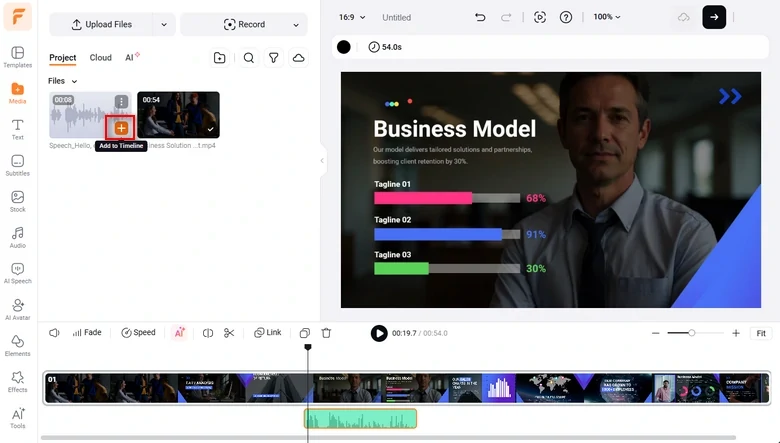
Add the Generated Voiceover to the Timeline
If you need to add subtitles to your video, click Subtitle tab > Auto AI Subtitle > select language and accent > Next > set the style of your subtitles > hit the Generate Subtitles button. Then, FlexClip will auto-generate subtitles for your AI voiceovers and the audio narration in the original video.
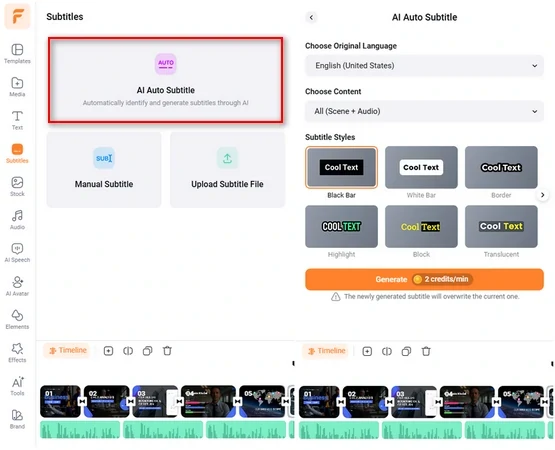
Use FlexClip’s AI subtitle generator to auto-generate subtitles for your video.
Then, you can customize the text's fonts, styles and colors, background fill, split or merge subtitles, etc. Pretty handy!
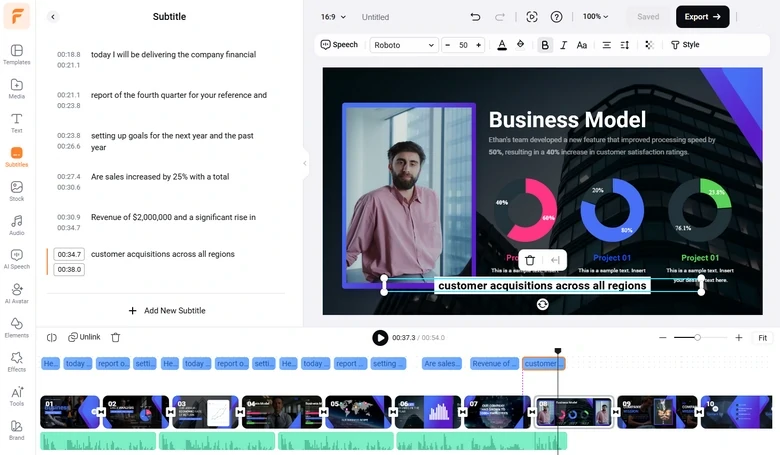
Customize the style of auto-generated subtitles in the video.
Done with the editing. You can save the 1080P video to your PC or directly share the video to YouTube, Google Drive, One Drive, Dropbox, or TikTok; a clickable link and an embed code are also available for your blogs, newsletters, or other repurposings.
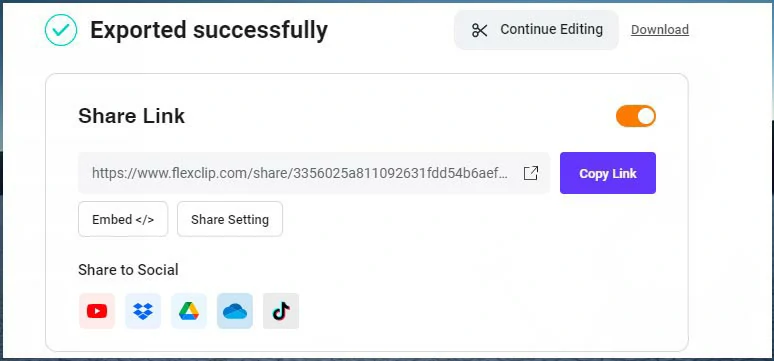
Multiple ways to share your video.
Downsides:
2. Murf
If you only need to add human-like AI voiceovers to videos or images and don’t need any video editing, then the Murf AI voice generator can also be another great option online. You get a 10-minute free generation of AI voiceovers to test out if it works for you.
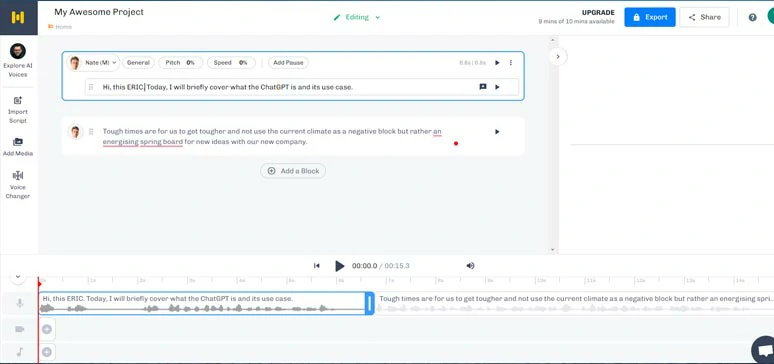
Auto-generate AI voices with Murf online.
With an easy-to-use user interface and tons of AI voice avatars and helpful text-to-speech related tools, Murf allows you to quickly add realistic AI-generated voices to your video like never before.
Best Features to Generate AI Voice with Murf
How to Create Realistic AI Voiceovers by Murf Online:
Downsides:
3. Speechify
If you are looking for a versatile AI voice generator that can help you read articles, emails, novels, and documents more efficiently just by listening to human-like AI voices, then look no further than Speechify.
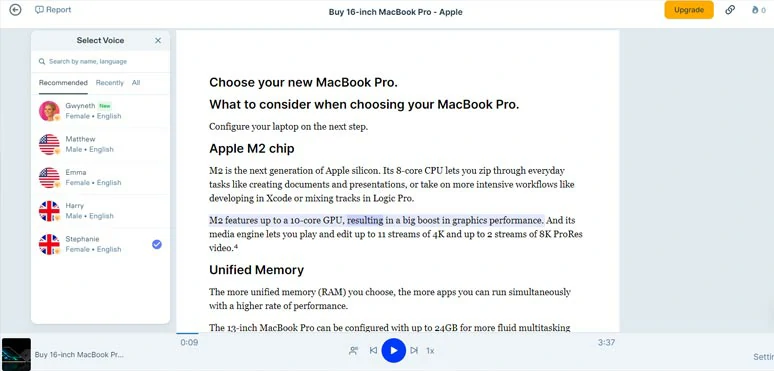
Generate lifelike AI voices from texts or an URL by Speechify online.
It’s available online, in the Apple store, and in Google Play for desktop and mobile users. You can use Speechify to convert any text, including texts in images to human-sounding AI voices with ease for audiobooks, podcasts, etc.
Best Features to Generate AI Voice with Speechify
How to Create Realistic AI Voiceovers by Speechify Online:
Downsides:
4. Voice.AI
Have you ever thought about using your favorite celebrity’s voice like Justin Bieber, Ellen, Emma Watson, Simpson, or Obama’s voice for your video projects or even in live streaming? Well, with the amazing AI voice generator from Voice.AI, your dream now has finally come true.
Generate realistic celebrity AI voice by Voice.AI
Unlike the previous text-to-speech AI voice generators above, Voice.AI allows you to record your voice on PC or speak in real-time in a live stream and it will turn your voice into a lifelike celebrity’s voice. That’s so sick.
Best Features to Generate AI Voice with Voice.AI
How to Create Realistic AI Voiceovers by Voice.AI:
Alternatively, you can click the Live mode button. So, you can speak like any celebrity with friends in Discord, Zoom, or voice chat in Games.
Downsides:
Now, It’s Your Move
| Generate AI Voices | Versatility | Platform | |
|---|---|---|---|
| FlexClip | Realistic AI voices; 400 neural AI voice avatars; 140 languages & accents; customize voice’s speed, pitch, emotions, etc. free backup audio file | Trim/split/merge multiple audio, images, and videos; auto AI subtitle generator, thousands of customizable video templates; feature-rich video editor and 4M+ audio/image/video/GIF assets | Online |
| Murf | Lifelike AI voices; 120+ AI voice avatars; 20+ languages; formal and causal accents; adjust voice pitch, speed, add pause; clone imported vid & audio voice | Only for text-to-speech or video transcription; no video editing tools | Online |
| Speechify | TTS reader; 30 AI voice avatars; 15+ languages | only for text to speech | Online, IOS, Android |
| Voice.AI | Celebrity AI voices; tons of celebrity AI voice avatars; English only; record/import audio for voice cloning; live streaming | Only for AI voice cloning | Windows |
No AI voice generators are created equal. If you need to generate human-sounding AI voiceovers for video projects, FlexClip, with its vast video and audio assets and powerful AI voice generator, and other video tools, is your best man. If you want to imitate a celebrity’s voice, go for Voice. AI. While Murf and Speechify are for normal text-to-speech and audiobook use, etc. So, feel free to experiment and share this post on your Facebook or Twitter and tag and tell us which works best for you. Cheers!




FlexClip AI Video Maker
Reach professional-quality videos faster with easy editing tools, templates, and smart AI.
Start Now for Free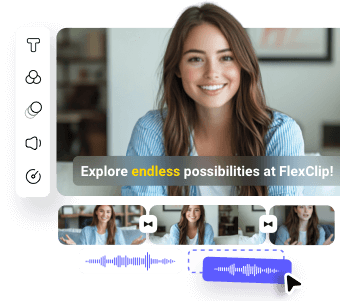
Hot & Trending
-
Best Ways to Find Music in YouTube Videos
-
Instagram Story Video Quality Bad After Upload? Fix It!
-
How to Repost Video on TikTok & How to Remove TikTok Repost
-

Improve Video Quality Online: 3 AI Video Quality Enhancers You Can't Miss
-

4K Convert to HD 1080p without Watermark: Best 4k Video Converters
-

Best 8 Free Video Editors - No Download Required
-

Top 13 Birthday Video Makers with Music and Effects Free
-
How to Search Filters on TikTok & Use a Filter You See - TikTok Filter Guide